
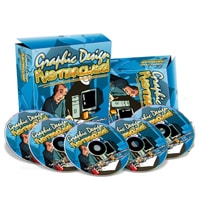
Graphic Design Masterclass
FREE
Only registered users can download this free product. Please Register HERE
Unlock the Ultimate ‘Easy & Fun’ Method to Supercharge Your Product Graphics Without Hiring Costly Designers! Skyrocket Your Subscriber Rate and Sales Conversions by Up to 300% – Even If You Have Zero Artistic Talent!
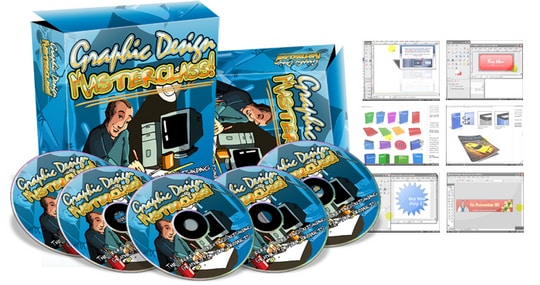
Welcome to the Graphic Design Masterclass video series – a complete digital training package designed to help you craft simple yet stunning mini-sites and virtual covers using Adobe Photoshop, Macromedia, and GIMP (a free tool). Whether you’re a complete beginner or a seasoned marketer, you’ll master professional design techniques without any art background. Best of all, this is a digital download with full PLR/MRR resell rights, giving you the freedom to rebrand, repackage, and profit!
Video Series 1 : Adobe Photoshop For Newbies (8-Part Video Course)
Video #1: Understanding Adobe Photoshop Features You Will Use (9 minutes and 38 seconds)
Adobe Photoshop can seem overwhelming due to its endless possibilities, but in this series we keep things ultra-simple. This video gives you a clear overview of the core tools and features we’ll rely on. You’ll discover how much you can achieve with just a handful of functions – and we’ll dive deep into each one later.
Video #2: The Importance of Royalty Free Images and How to Find Them (7 minutes and 39 seconds)
Creating professional mini-sites requires access to high-quality photography that fits your niche. In this video, you’ll learn why royalty-free images are essential and how to source them effortlessly for all your design needs.
Video #3: How to Use the Adobe Lasso and Crop Tool (7 minutes and 35 seconds)
Ever wondered how designers extract people or objects from one photo and place them into another? The Lasso and Crop tools are your secret weapons. This video teaches you exactly how to use them correctly to build stunning headers and graphics.
Video #4: How to Work with Layers to Make Art Creation Easier (5 minutes and 40 seconds)
Layers are the magic behind realistic photo composites and time-saving workflows. You’ll learn how to merge multiple images seamlessly and organize your projects like a pro – making mini-site creation a breeze.
Video #5: How to Understand the Art of Balancing Your Designs (7 minutes and 59 seconds)
Have you ever looked at a design and felt something was “off”? That’s poor balance. This video teaches you how to harmonize headers, footers, ecovers, and more so every element feels perfectly placed and visually appealing.
Video #6: How to Create a Minisite Header (11 minutes and 14 seconds)
Now the fun begins! Using everything you learned in videos 1-5, you’ll create a professional mini-site header from scratch. These foundational skills apply far beyond headers – you’ll be able to design anything with confidence.
Video #7: How to Create a Minisite E-Book, DVD, E-cover (9 minutes and 47 seconds)
Take your header design and transform it into a compelling ebook or DVD ecover. You’ll see how easily the same design principles transfer, ensuring consistency and a polished look across all your products.
Video Series 2 : Create Your Own eCover Graphics! (8-Part Video Series)
- Video #1: Getting Started Creating Your eCover From Scratch.
- Video #2: Creating The Front Image For Your eCover.
- Video #3: Creating The Front Of Your eCover Part II.
- Video #4: Creating The Side Graphics For Your eCover.
- Video #5: Making The Disc Image For Your eCover.
- Video #6: Making The eCover Box And Disc Image.
- Video #7: Making The eCover Box And Disc Image Part II
- Video #8: Using eCover Software And It’s Functions
Video Series 3 : How To Create Web 2.0 Graphics Using Gimp! (7-Part Video Course)
Video #1: How to Download and Install GIMP
GIMP (GNU Image Manipulation Program) is a free, powerful alternative to Photoshop – and it’s surprisingly easy to use. This video walks you through downloading and installing it so you can start creating instantly.
Video #2: Understanding GIMP’s Features and Tools
Get familiar with the essential tools and features you’ll use throughout the course. Knowing your workspace saves hours of frustration and lets you focus on designing.
Video #3: How to Make A Web 2.0 Shiny Buttons Using GIMP
Web 2.0 graphics are all about that glossy, vibrant look.
| LICENSE: | |
|---|---|
| FILE SIZE (MB): | 267.2 |
| PRODUCT TYPE: |
Related products

Christian Books PLR

Cooking PLR

Christian Books PLR

Auto PLR

E-Business PLR

E-Business PLR

Christian Books PLR

E-Business PLR


